





| You may get .psd* file of "Sony Ericsson S500 Cell phone interface. Photoshop Tutorial" Photoshop tutorial by making a payment. Put the tutorial title in "Add special instructions to seller" line of PayPal and it will be sent to you shortly. |
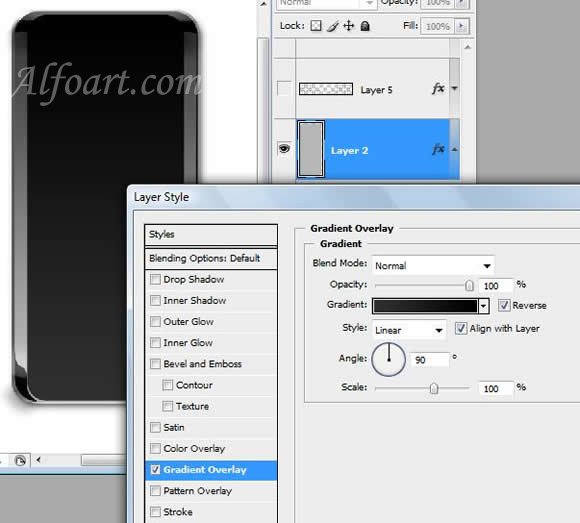
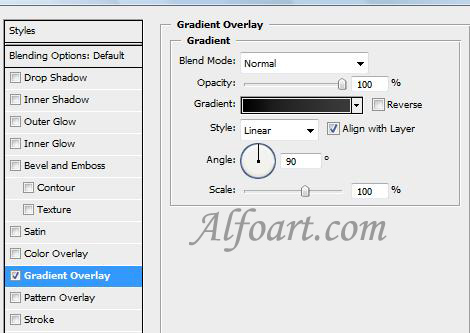
- Make a new shape in a new layer. Fill it with any color and apply Gradient Overlay.
- Create a new layer.
-
Make a rectangular selection using Rectangular Marquee
 In the bottom part of our phone.
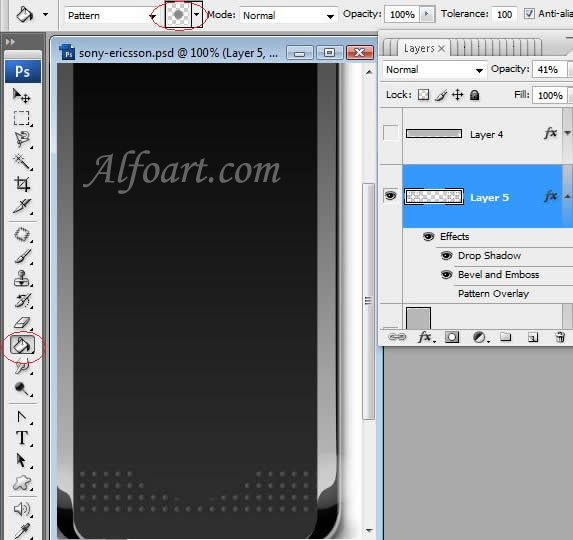
 - Fill selection with a pattern which consists of a small circle and a transparent background.
- Create a round selection and cut central part of the shape with pattern.
Creating and managing patterns
- Use Rectangle Marquee tool on any open image to select an area to use as a pattern. Feather must be set to 0 pixels. Note that large images may become unwieldy.
- Choose Edit > Define Pattern.
- Enter a name for the pattern in the Pattern Name dialog box.
- Apply Opacity 40% and the following layer style adjustments .
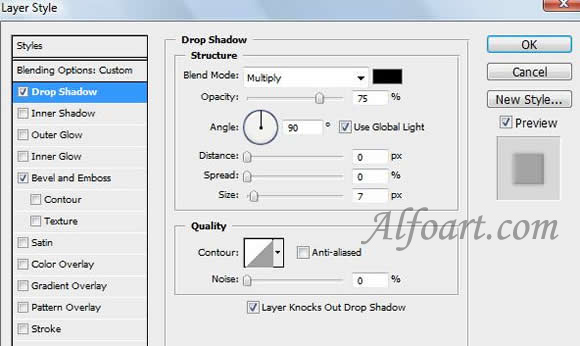
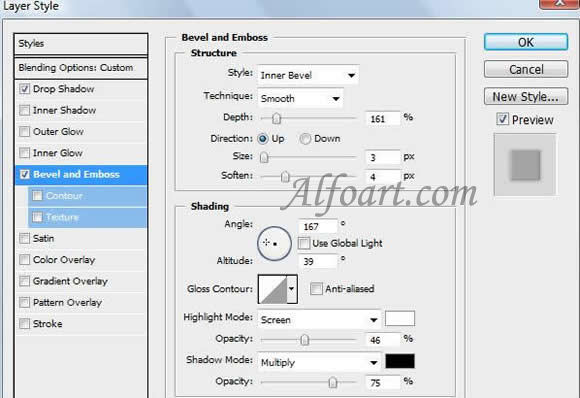
- Load selection to the layer located before the pattern layer.
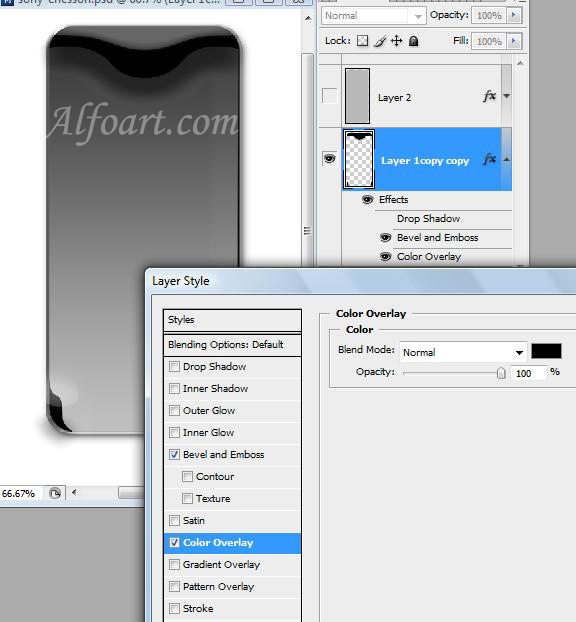
- Fill it with any color in a new layer and cut top part of the shape.
- Apply Gradient Overlay to this layer
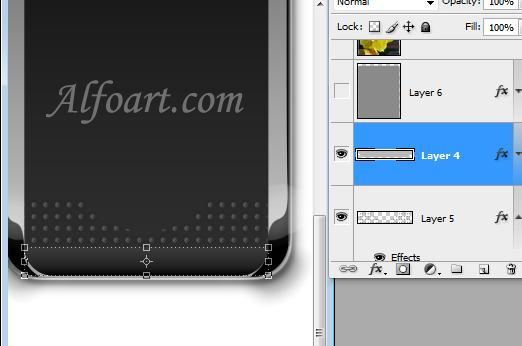
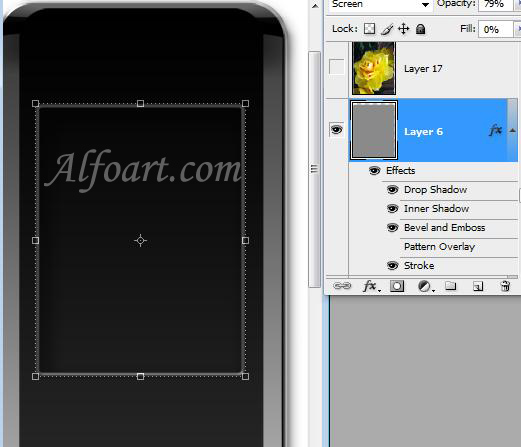
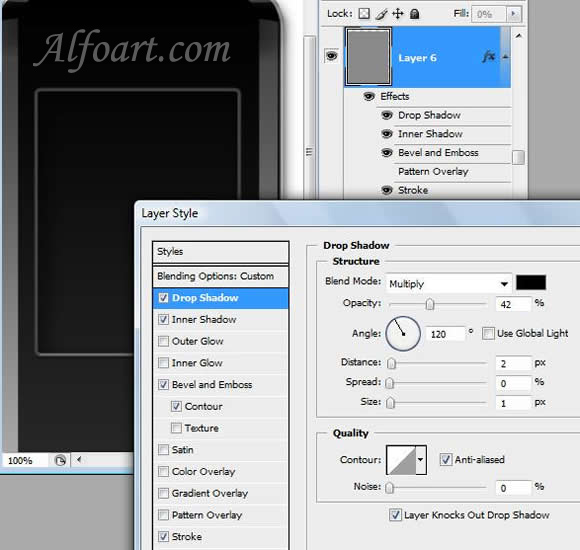
- Make rectangle shape for the phone screen and apply the following adjustments.