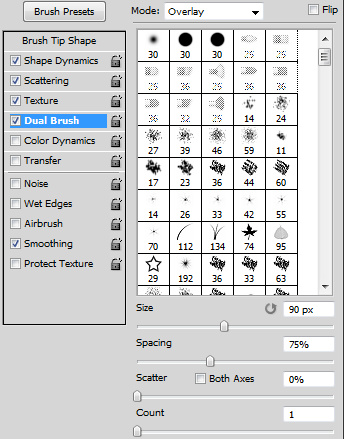
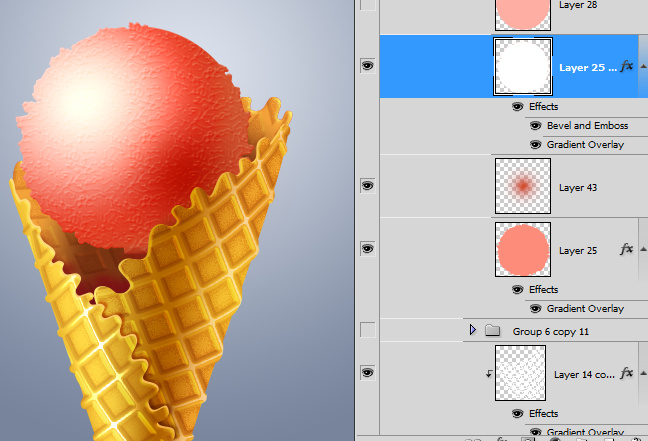
- Create ice ball shape with the Ellipse Tool

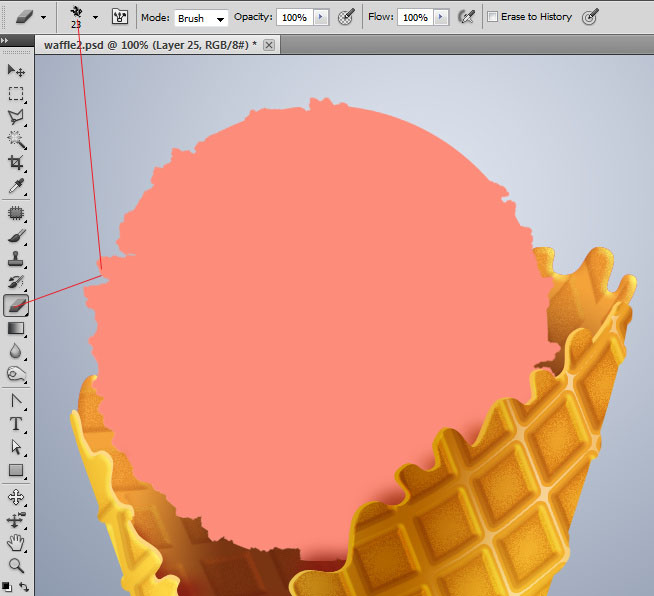
- Use Eraser Tool and any textured brush to create ragged contour.
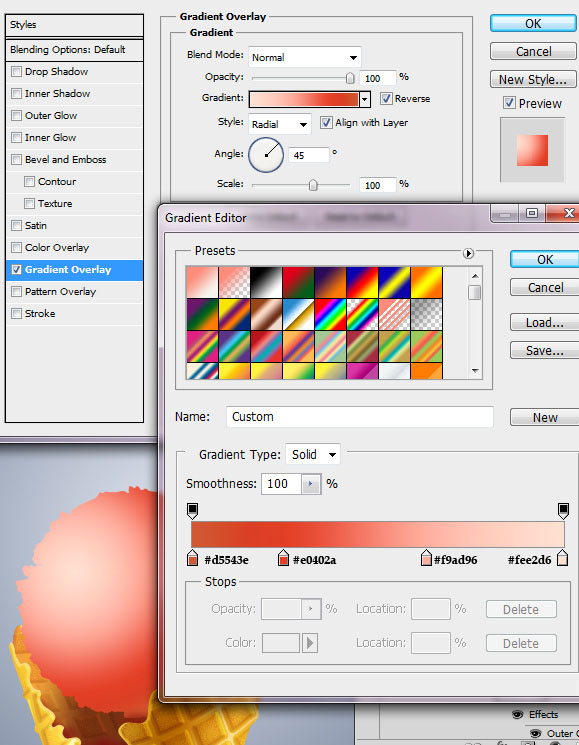
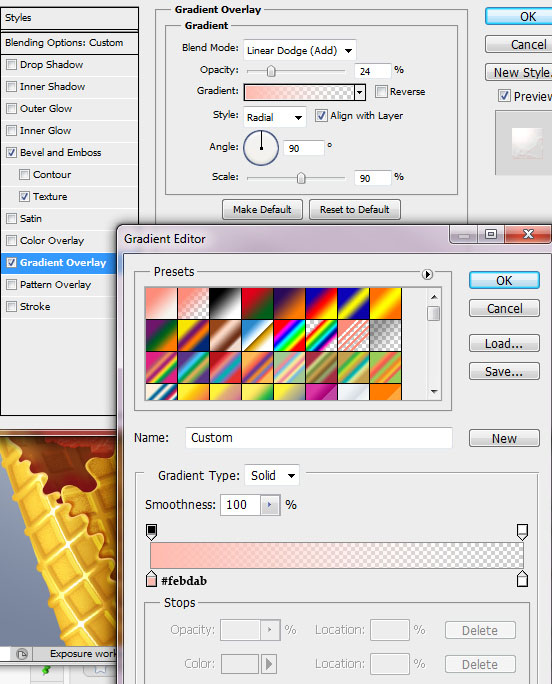
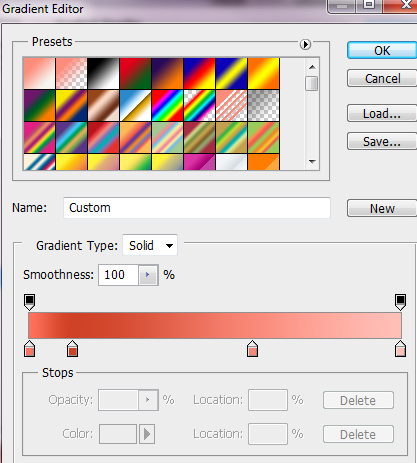
- Apply Radial Gradient to this shape:
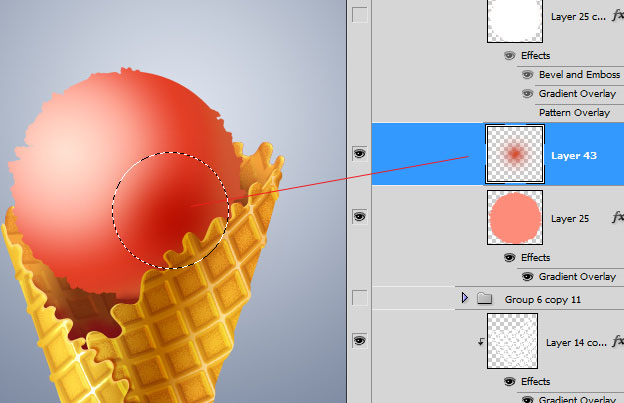
- Add a new layer above the ball and touch it with the translucent darker red shade soft brush.
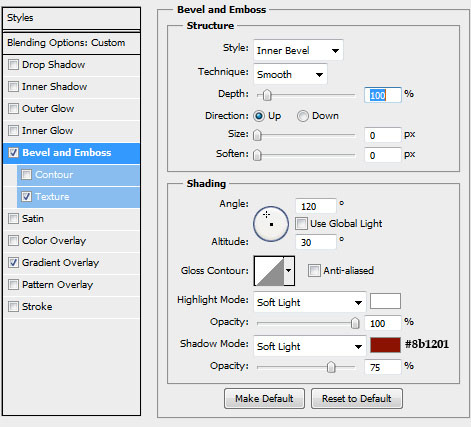
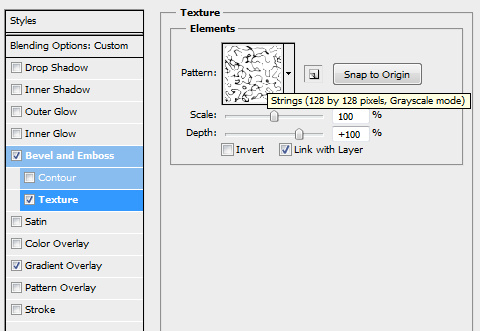
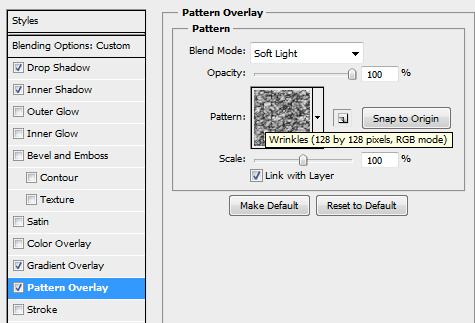
- Duplicate ice ball layer and apply layer style effects to it. Use Preset Photoshop Pattern Strings.
- Load selection for the ball shape, create a new layer and draw ragged arc-shaped strokes. You may use "Chalk" preset Photoshop brush.
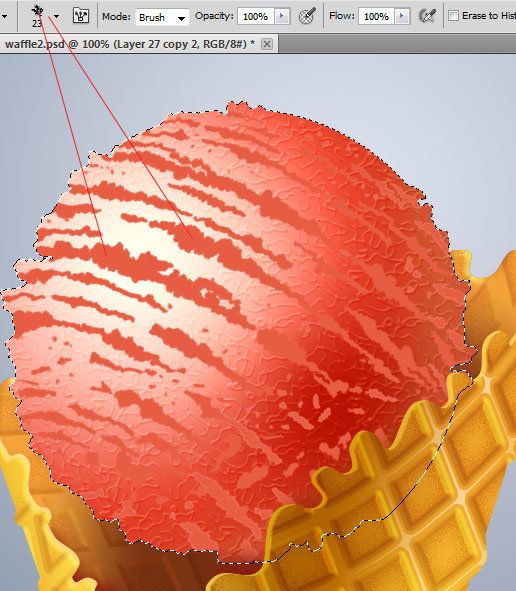
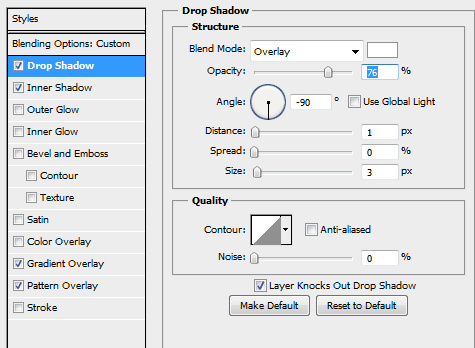
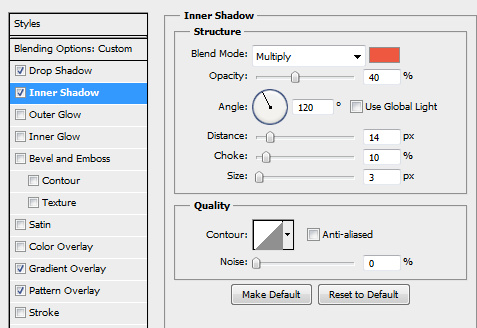
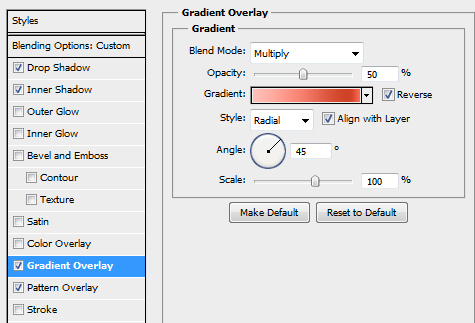
- In Order to have volume grooves, apply layer style effects just like on the screen shots below.
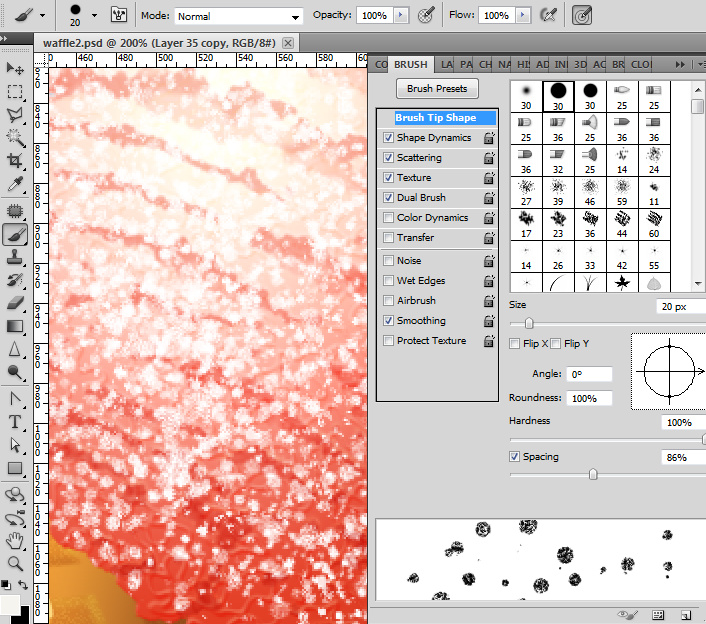
- Take the round Brush Tool, choose size 20px.
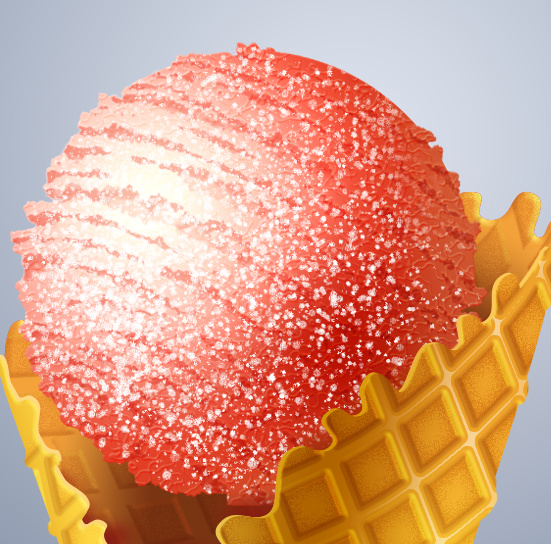
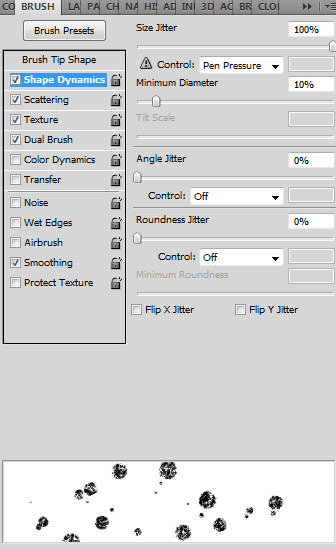
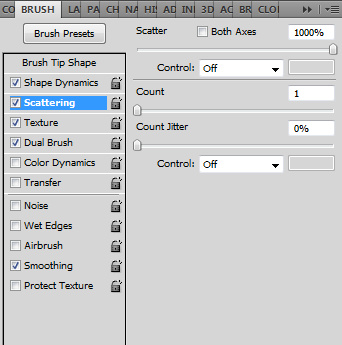
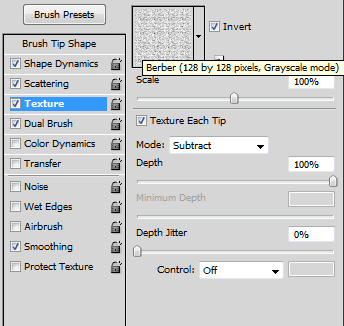
- Apply these settings to the Brush Tool and cover area above the ice shape with the brush texture.